Leave Your Message
-
Phone
-
E-mail
-
Whatsapp

Choosing a High Speed Router is not simply a matter of buying the box with the largest number on its label. In a real office, video calls compete with cloud backups, point-of-sale terminals, and dozens of phones. When the network falters, the cost is often measured in stalled work, not megabits.
Cisco’s Annual Internet Report (2018–2023) forecast 29.3 billion networked devices worldwide by 2023. That was a global forecast, not a guarantee about any single business. Still, it shows why capacity deserves attention. Ethernet co-inventor and networking pioneer Robert Metcalfe is associated with the principle that “the value of a network is proportional to the square of the number of connected users.” More users can mean more value, but also more congestion when equipment is poorly matched. Numbers alone can mislead.
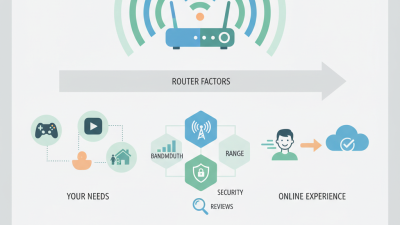
A practical choice starts with the floor plan, user count, internet service speed, and workload. Check Wi-Fi coverage, wired-port needs, security updates, traffic controls, and support options. A router rated for impressive peak speeds may perform differently through a brick wall, or under simultaneous office traffic. I would not treat a lab maximum as a business promise. It is an easy mistake.
This guide examines the specifications that matter, the trade-offs between Wi-Fi generations, and the questions to ask before purchase. The aim is not a perfect router on paper. It is a reliable connection at the desks where work actually happens.

Before comparing router specifications, map how your business actually uses its network. Count staff, guest devices, printers, cameras, and wireless equipment during the busiest hour. Then list demanding tasks: video meetings, cloud backups, large file transfers, or point-of-sale systems. A quiet office at 9 a.m. can feel very different when a meeting starts and backups run together. Count real devices, not just employees.
Cisco’s Annual Internet Report forecast average global fixed broadband speeds of 110.4 Mbps in 2023, up from 46.9 Mbps in 2018. This is a broad market forecast, not a recommended speed for every company. Use it as context, then measure your own connection and peak usage. Check upload capacity too; cloud backups and video calls can strain it quickly. Measure on busy days. A speed test taken once may miss the afternoon slowdown.
Map coverage where work happens, including meeting rooms, stock areas, and the far desk behind a concrete wall. Note dead zones, dropped calls, and devices that need wired connections. Separate essential operations from convenience traffic, such as guest Wi-Fi. Keep some headroom for new staff and devices, but do not buy capacity based on guesses alone. I have seen tidy spreadsheets miss one practical detail: a network cabinet tucked behind metal shelving. Real layouts matter. This assessment gives you a clearer basis for choosing router speed, Wi-Fi capacity, and security features.
| Business Network Factor | What to Assess | Example Requirement | Router Selection Guidance |
|---|---|---|---|
| Users and devices | Count employees, guest users, computers, phones, printers, cameras, and other connected devices. Estimate simultaneous use, not just total device count. | A 20-person office may have substantially more than 20 connected devices, especially when staff use multiple devices. | Check the router’s documented client capacity and processing performance. For a larger or growing office, consider separate access points and a router designed for business networks. |
| Internet service speed | Record the subscribed download and upload speeds, connection type, and whether the provider supplies a modem or other termination equipment. | A connection rated at 1 Gbps requires a router and WAN interface capable of handling at least that rate under the intended configuration. | Match WAN and LAN port speeds to the service. If the service exceeds 1 Gbps, check for multi-gigabit interfaces; security features may reduce real-world throughput. |
| Applications and traffic | Identify video meetings, cloud applications, file transfers, voice calls, point-of-sale systems, and any bandwidth-intensive workloads. | Regular video meetings and cloud backups can create simultaneous demand for both upload and download bandwidth. | Prioritize stable performance, adequate upload capacity, and quality-of-service controls where needed. Compare throughput with firewall, VPN, and other features enabled. |
| Coverage and layout | Map the office area, floors, walls, interference sources, and locations where reliable Wi-Fi is needed. | A single router may not provide consistent coverage across a large office, multiple floors, or rooms with dense walls. | Plan access-point placement based on the building layout. Wired access points generally provide a more predictable connection than relying on distance alone. |
| Wireless capacity | Check supported Wi-Fi standards, frequency bands, channel planning, and the capabilities of the devices employees actually use. | A newer wireless standard cannot make older client devices support that standard or guarantee a specific speed in every room. | Choose equipment compatible with your client devices and expected density. Treat advertised wireless rates as theoretical link rates, not guaranteed application speeds. |
| Wired connections and ports | Count wired computers, servers, printers, switches, access points, and other equipment; note which devices need faster links. | A router with too few LAN ports may require an additional network switch as the office grows. | Confirm the number and speed of LAN ports, and allow for expansion. Use suitable cabling and switches to avoid creating a slower link elsewhere in the network. |
| Security and remote access | List requirements for firewall rules, VPN access, guest networks, network separation, firmware updates, and administrator access. | Guest Wi-Fi should be separable from business systems, and remote access should use secure, maintained configurations. | Select a router with the required security and management features. Verify its throughput while those features are active and review the vendor’s update-support policy. |
| Reliability and growth | Consider operating hours, the impact of an outage, expected staff growth, and whether a backup internet connection is needed. | A business that depends on cloud services may benefit from a tested backup connection and a documented recovery plan. | Look for monitoring, dependable firmware support, and suitable failover options if required. Size for likely growth without relying on headline speed alone. |
Planning note: Requirements vary with building materials, client devices, traffic patterns, configuration, and internet service. Validate expected performance with the router’s specifications and, when possible, a site assessment.